Build & Push Container Image to ECR
Step 1 – Run Backend Tests Locally
Before building anything, verify the backend compiles and all tests pass:
cd backend
python -m venv .venv
.\.venv\Scripts\Activate.ps1
python -m pip install -r requirements-dev.txt

# Verify Python syntax
python -m compileall app

# Run all 204 tests
python -m pytest
Expected result: 204 tests pass, no compilation errors.
Step 2 – Configure the Local .env
Copy the example file and edit it for your environment:
Copy-Item .env.example .env
Key variables to set:
| Variable | Value | Notes |
|---|---|---|
AWS_REGION | ap-southeast-1 | Region for all AWS calls |
S3_BUCKET | livecap-transcripts-dev-720459752315 | Your transcript bucket name |
ALLOWED_ORIGIN | http://localhost:5173 | Local frontend URL |
BILINGUAL_DUAL_STREAM | true | Enable both Vietnamese and English |
Never put AWS access keys in this file. The backend uses the IAM profile set in your environment.
Step 3 – Verify Backend Runs Locally
python -m uvicorn app.main:app --reload --host 0.0.0.0 --port 8000
In another terminal:
Invoke-RestMethod http://127.0.0.1:8000/api/health
Expected response:
{"status": "healthy", "version": "1.0.0"}
Step 4 – Build the Docker Image for Fargate
ECS Fargate runs on Linux amd64. Use Docker Buildx to build the right
platform regardless of your machine’s architecture:
# Tag the image with the current Git commit SHA (immutable)
$imageTag = "$(git rev-parse --short HEAD)-amd64"

docker buildx build --platform linux/amd64 --provenance=false `
  -t "livecap-backend:$imageTag" --load .
Smoke-test the image locally before pushing:
docker run --rm -d --name livecap-smoke -p 8000:8000 `
  --env-file .env "livecap-backend:$imageTag"

Start-Sleep 3
Invoke-RestMethod http://127.0.0.1:8000/api/health

docker stop livecap-smoke
Step 5 – Authenticate Docker to ECR and Push
ECR uses short-lived tokens for Docker authentication. Retrieve a fresh token and push the image:
$region    = "ap-southeast-1"
$accountId = aws sts get-caller-identity --query Account --output text `
               --profile <aws-profile>
$registry  = "$accountId.dkr.ecr.$region.amazonaws.com"
$repository = "$registry/livecap-backend"

# Login
aws ecr get-login-password --region $region --profile <aws-profile> |
  docker login --username AWS --password-stdin $registry

# Tag and push
docker tag "livecap-backend:$imageTag" "$repository:$imageTag"
docker push "$repository:$imageTag"
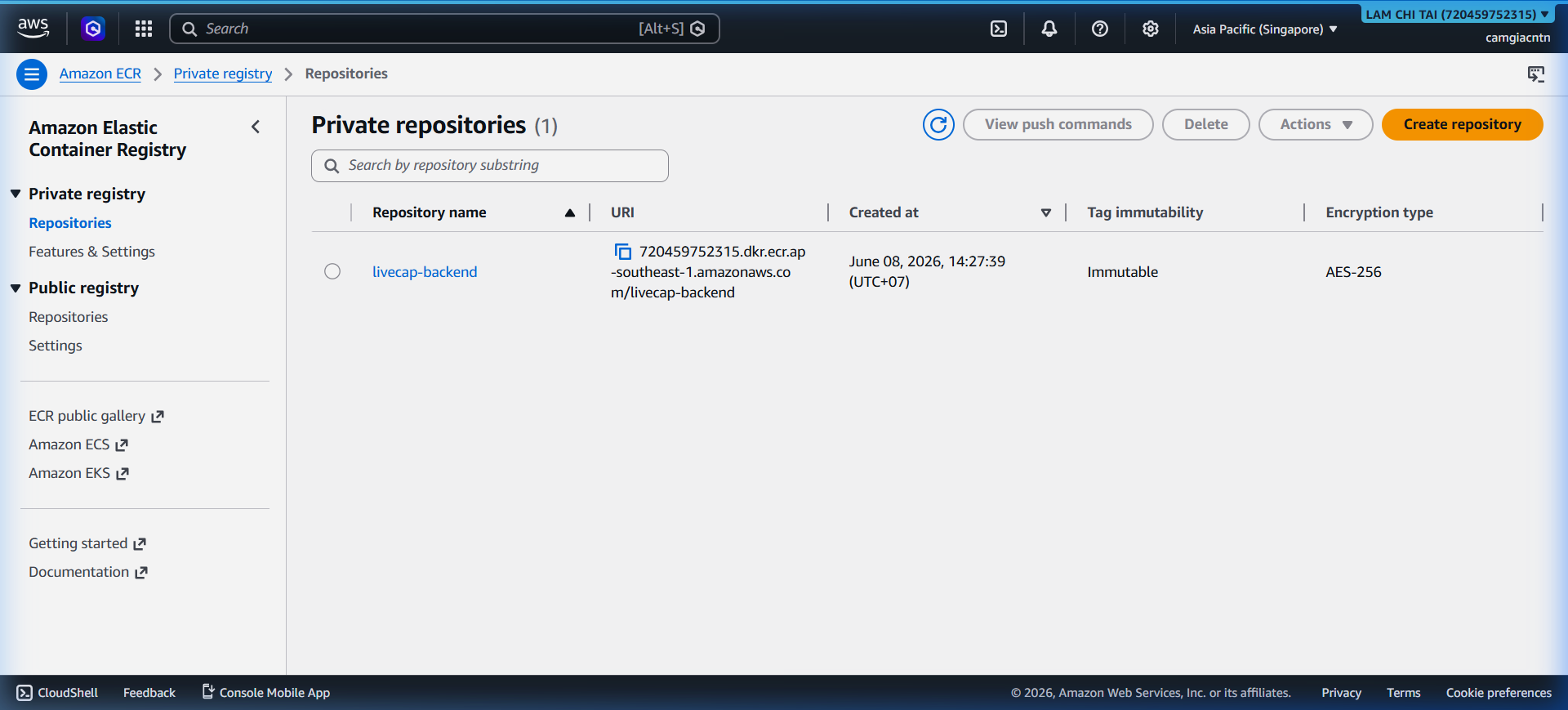
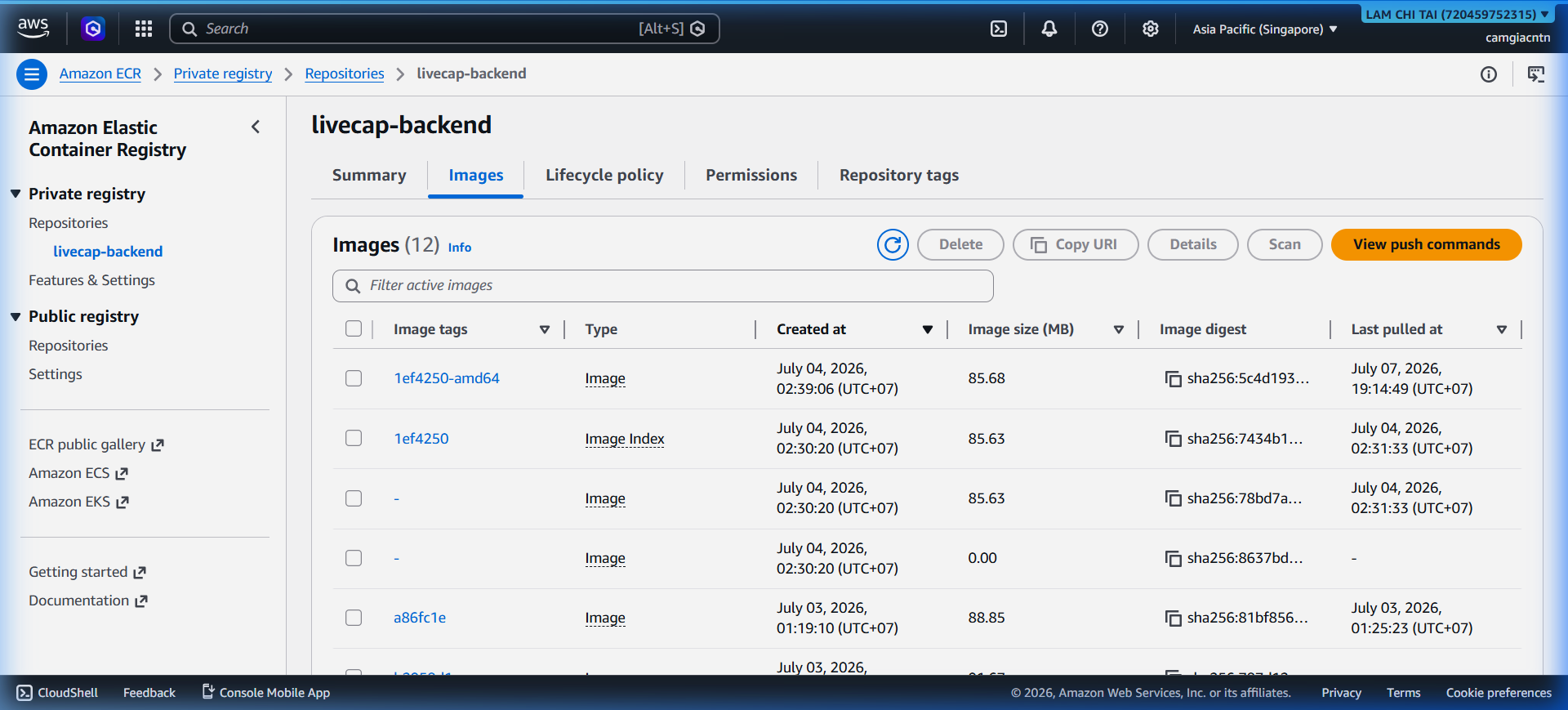
After the push, the image appears in ECR with an immutable tag derived from the Git commit SHA:
Step 6 – IAM Role Separation
LiveCap uses two separate IAM roles for the ECS task:
Task Execution Role (livecap-execution-role)
- Pull images from ECR
- Write container logs to CloudWatch
Task Role (livecap-task-role)
- Call Amazon Transcribe Streaming
- Call Amazon Translate
- Write/read from the private transcript S3 bucket
- Write metrics to CloudWatch
- Optionally: call
ecs:UpdateServicefor idle scale-down
This separation ensures the running application never gets deployment permissions it does not need.